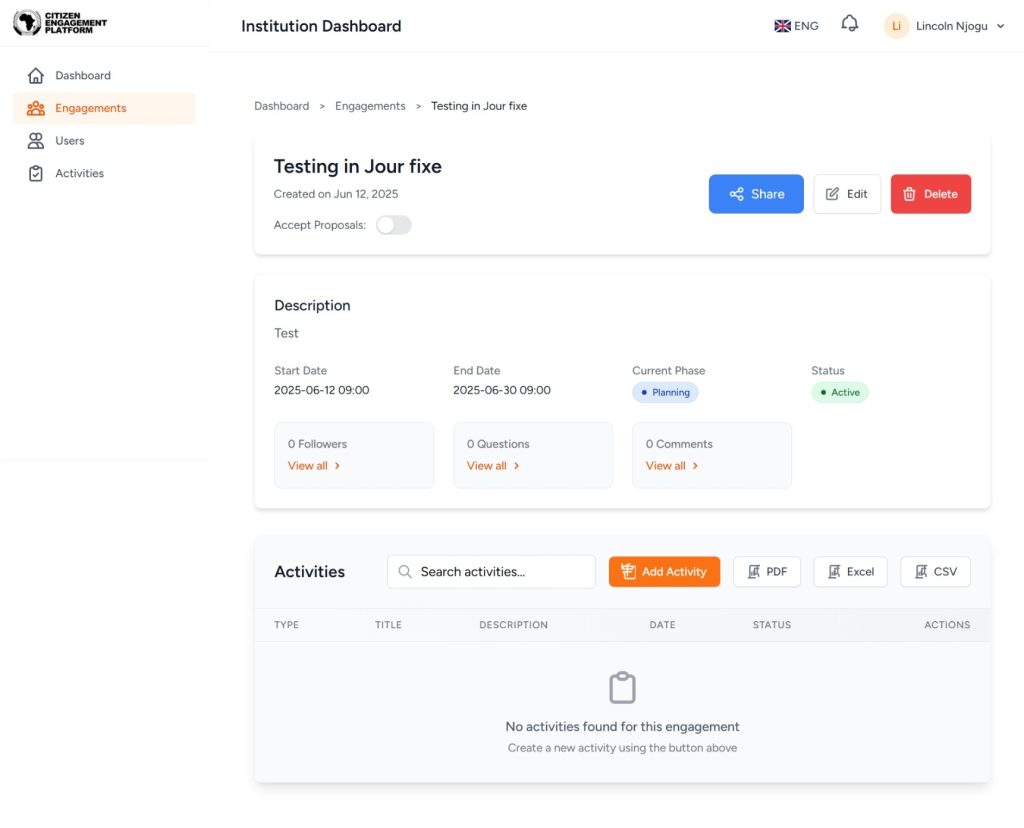
The Engagement Overview page provides Institutional Admins with a complete snapshot of an engagement’s status, details, participation, and available actions. This page is the central place to manage and monitor everything related to a specific engagement.
1. Engagement Header
At the top of the page, you will see the key engagement information:
Engagement Title
Displayed prominently (e.g., “Testing in Jour fixe”).
Creation Date
Shows when the engagement was first created.
Accept Proposals Toggle
A switch that allows you to turn proposal submissions on or off for this engagement.
Action Buttons
- Share – Generate a shareable link or post to external platforms.
- Edit – Open the engagement setup to modify details, timelines, phases, or settings.
- Delete – Permanently remove the engagement from the platform.
2. Engagement Details
Below the header, a description block displays the core details:
Description
A short text explaining what the engagement is about.
Start and End Dates
Shows the scheduled timeframe of the engagement, including date and time.
Current Phase
Indicates the phase the engagement is currently in (e.g., Planning, Agenda Setting, Drafting).
This updates automatically based on your phase configuration.
Status
Shows whether the engagement is Active or Inactive.
Active engagements are visible to the public and can receive participation.
3. Participation Metrics
This section provides quick access to participant engagement:
- Followers – Number of users who have subscribed to follow updates.
- Questions – Number of questions submitted by participants.
- Comments – Total comments posted under this engagement.
Each metric has a View all link to open the full list of interactions.
4. Add Activities
When you click Add Activity, you will see the following options:
1. Add Survey
Create a survey to collect structured feedback, opinions, or insights from participants. Surveys support multiple question types and can be used in any engagement phase.
2. Add Poll
Create a single-question poll to quickly gauge public sentiment or preferences. Polls are ideal for rapid feedback and lightweight interactions.
3. Add Event
Add an event such as a webinar, workshop, consultation meeting, or in-person session.
You can specify:
- Event title
- Date and time
- Format (online, in-person, hybrid)
- Registration details
4. Add Resource
Upload and share supplementary resources, such as:
- Background reports
- Reference materials
- Presentations
- External links
Resources support engagements by giving participants the information they need to contribute meaningfully.
5. Add Document
Upload a document for public review or consultation. Users can:
- View the document
- Comment
- Annotate (if enabled)
- Provide feedback
Documents are commonly used for draft policies, declarations, position papers, or guidelines.